




Moero M2 ULTRA 17Pro Edition MagSafe Wallet con Apple Find My Integrato – Portafoglio RFID in Alluminio e Vera Pelle
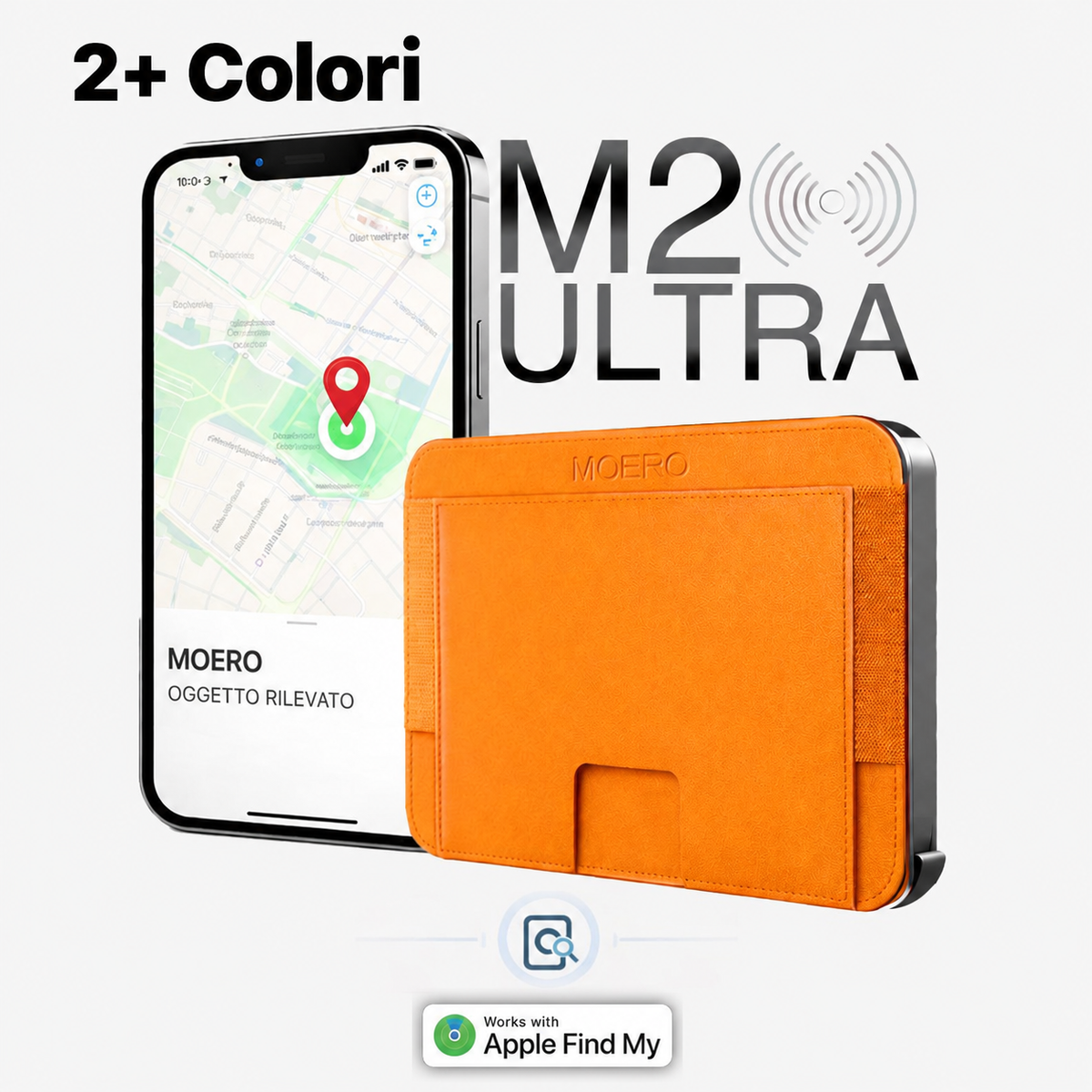
Moero M2 Ultra è un portafoglio dal design minimalista con blocco RFID. Il portacarte principale in alluminio aerospaziale può contenere fino a 7 carte lisce. ( 4 carte lisce nel portacarte automatico e 3 carte lisce nella tasca in pelle)
La Tasca è realizzata con vera pelle di vitello, con Fasce Elastiche si espande potendo inserire altre Carte aggiuntive e Banconote.
I Bordi sono in Alluminio Aerospaziale per rendere il Moero M2 Ultra leggero e resistente
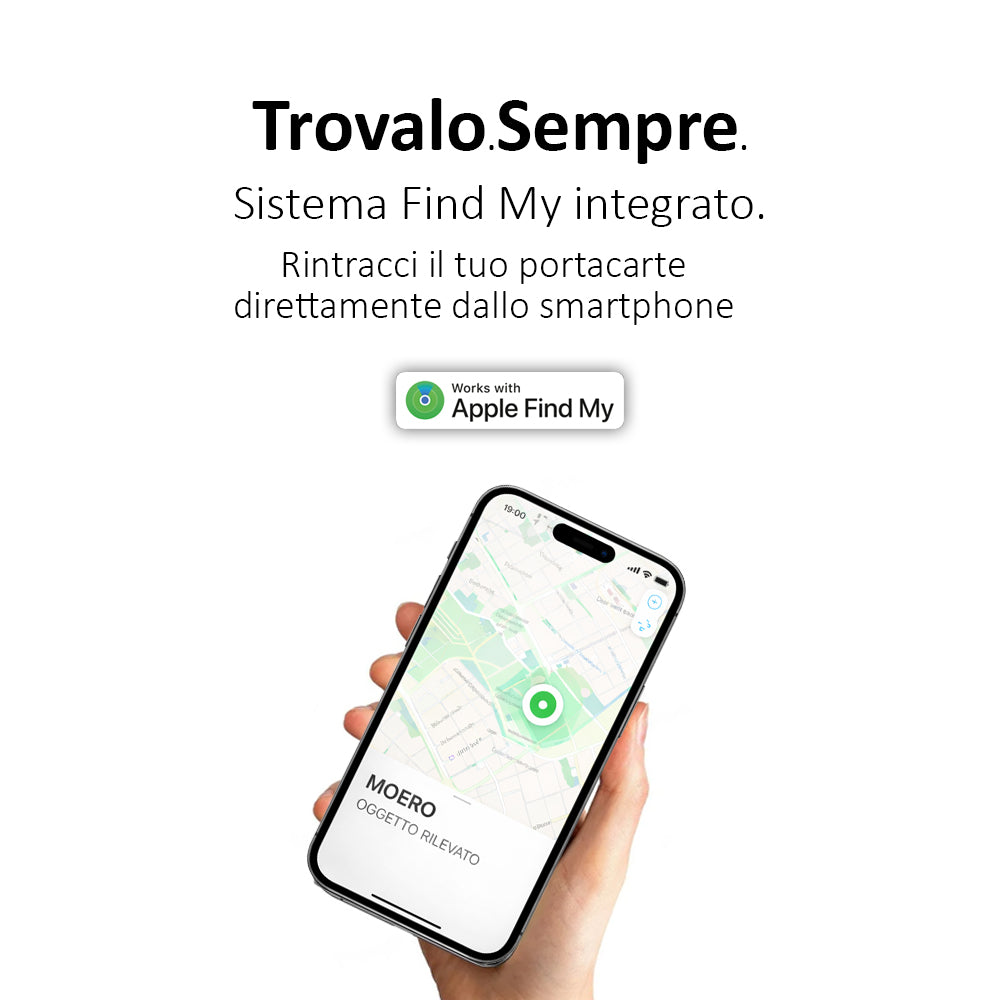
Il Moero M2 Ultra è dotato di tecnologia Find My, non necessita di AirTag è compatibile con la funzione Dov’è: se viene separato dal telefono, puoi ricevere una notifica con l’ultima posizione conosciuta. M2 Ultra traccia la posizione in tempo reale e riproduce un suono per recuperarlo tramite l'app Dov'è nei dispositivi della mela.
Moero M2 Ultra è dotato di Tecnologia Magsafe ed è compatibile SOLO con iPhone 18/ 17/ 16 / 15 / 14 / 13 / 12 e con tutti gli smartphone con custodie magsafe. La funzione magnetica del portafoglio non funziona con altri modelli di iPhone o con custodie non MagSafe.
Il lato posteriore del Moero M2 Ultra è realizzato in un materiale composto da una speciale microfibra scamosciato con il nome di MISCA, non graffia il vetro dello smartphone. Lo speciale Materiale MISCA è studiato per tenere Pulito e Lucido lo schermo dello smartphone senza utilizzare nessun detersivo.
Dimensioni: 6,7 x 9,7 x 0,8 cm
Il tipico portafoglio tradizionale in pelle invece, si riempie di ricevute sbiadite e carte inutili, finendo per assomigliare più a una valigia che a un portafoglio. Moero M2 Ultra è minimalista senza nessun limite. Ti permette di portare con te tutto quello che ti serve.
Disabling the MOERO M2 ULTRA
The "MOERO M2 ULTRA" can be disabled to stop it from sharing its loca=on. Once disabled, it will
no longer report to Google’s Find Hub network or Apple’s Find My network, and the owner will
no longer receive updates on its current loca=on. It will also stop triggering unknown tracker
alerts. If you receive a no=fica=on on your Android or iOS device indica=ng that a "MOERO M2
ULTRA" has been detected nearby and you are unfamiliar with this device, you can make it ring
through the system no=fica=on. ALer loca=ng the device, follow the steps below to disable it.
Disable via Bu,on Press:
• Locate the buMon on your "MOERO M2 ULTRA".
• Press and hold the buMon for about 5 seconds. You will hear One long beep
Re - enable the "MOERO M2 ULTRA":
Tore - enable the "MOERO M2 ULTRA", either press the buMon .
Press the Bu,on:
Please press the button four times quickly, then press it five times and hold it for one
second. When it is re-enabled, you will hear a music confirmation.
Factory Reset and Pairing:
To reset the "MOERO M2 ULTRA" to factory seRngs, press the buMon four =mes quickly, then
hold it five =mes for one second. When you hear a music, release the buMon. ALer reseRng, you
can pair the "MOERO M2 ULTRA" with a new Google or Apple account..Important Notes:
• When the "MOERO M2 ULTRA" is paired with an Android device, it operates as a Google
Find My Device locator tag. If paired with an iOS device, it func=ons as an Apple Find My
locator tag.
• For pairing, ensure Bluetooth is enabled on your device and that it has internet access.
To ac=vate the "MOERO M2 ULTRA", press the buMon once, and you will hear a melody
confirming ac=va=on.
• You can remove the "MOERO M2 ULTRA" from either the Google Find My Device app on
Android or the Find My app on iOS. If it’s within Bluetooth range, a factory reset will
automa=cally occur upon removal from the app. If out of range, perform a manual
factory reset.
Kostenloser Versand in Italien 24/48 Stunden
24 Monate italienische Garantie
RÜCKGABE ohne Angabe von Gründen
Garantierte Unterstützunginnerhalb von 24 Stunden
assistenza@moero.it
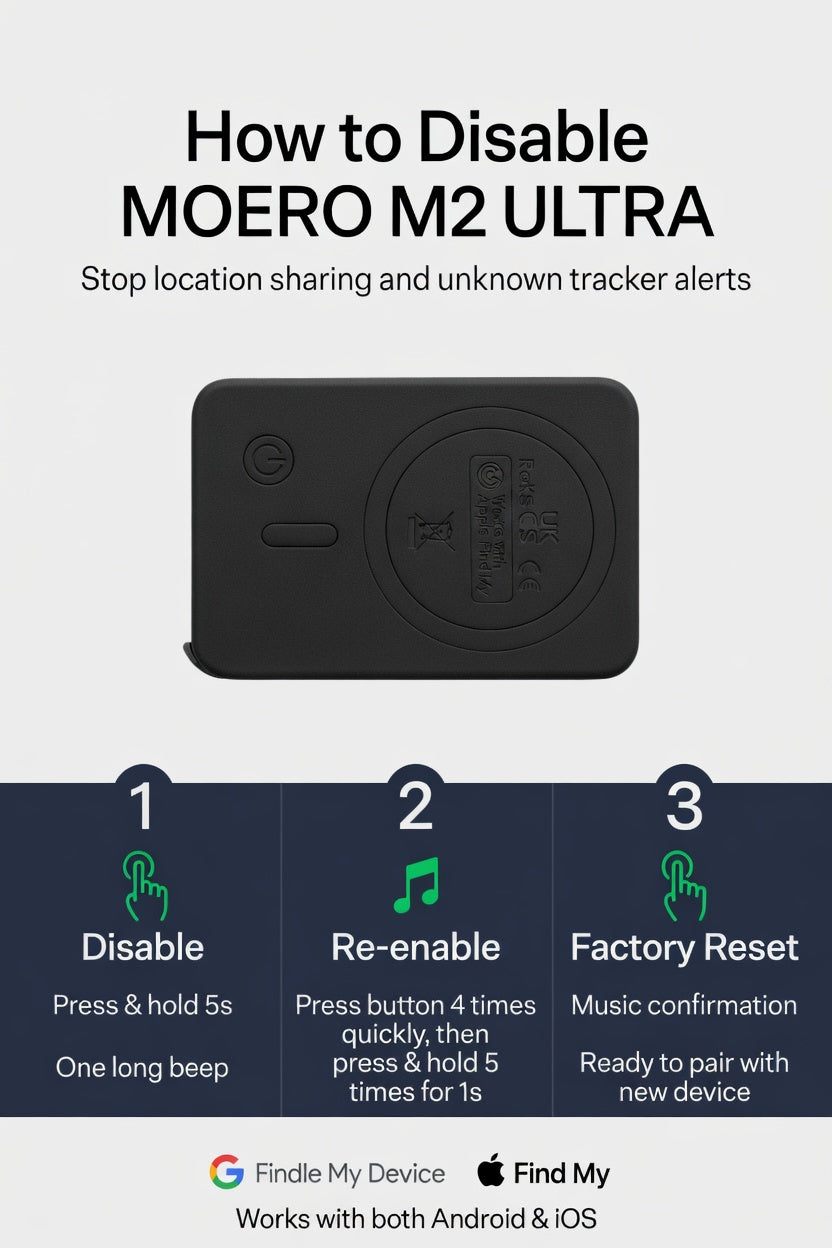
The “MOERO M2 ULTRA” can be disabled to stop it from sharing its location. Once disabled, it will no longer report to Google’s Find Hub network or Apple’s Find My network, and the owner will no longer receive updates on its current location. It will also stop triggering unknown tracker alerts. If you receive a notification on your Android or iOS device indicating that a “MOERO M2 ULTRA” has been detected nearby and you are unfamiliar with this device, you can make it ring through the system notification. After locating the device, follow the steps below to disable it.
Disable via Button Press:
• Locate the button on your “MOERO M2 ULTRA”.
• Press and hold the button for about 5 seconds. You will hear one long beep.
Re-enable the “MOERO M2 ULTRA”:
To re-enable the device, press the button four times quickly, then press it five times and hold it for one second. When it is re-enabled, you will hear a music confirmation.
Factory Reset and Pairing:
To reset the device to factory settings, press the button four times quickly, then hold it five times for one second. When you hear a melody, release the button. After resetting, you can pair the device with a new Google or Apple account.
Important Notes:
• When paired with Android, it works as a Google Find My Device tag.
• When paired with iOS, it works as an Apple Find My tag.
• Ensure Bluetooth and internet are enabled during pairing.
• To activate the device, press the button once and you will hear a melody.
• Removing the device from the Find My apps triggers a factory reset if in Bluetooth range; otherwise, perform a manual reset.
